
Author: TerraNovaFy

  • Custom WordPress vs. Website Builders: Which Works Better for Local SEO?

    Custom WordPress vs. Website Builders: Which Works Better for Local SEO?

    The WordPress vs website builders decision does not have a universal local SEO winner. A well-managed WordPress site and a well-managed hosted builder site can both support search visibility. Your implementation, content, performance, and maintenance matter more than a platform label.

    Custom WordPress can offer greater control over templates, integrations, and hosting. Hosted builders can reduce the technical work your team handles. Each choice introduces different responsibilities and constraints.

    Start with what your business needs the website to do, then compare the platforms against those requirements.

    Define the options before comparing them

    Self-hosted WordPress lets you choose a host and use themes, plugins, or custom development. A developer can build a restrained site with native blocks or assemble a complicated setup with many dependencies.

    Hosted builders such as Wix and Squarespace combine website tools and hosting within their own services. Your editing and technical options depend on the platform and plan.

    Page builders inside WordPress form a separate category. They change the editing experience without turning WordPress into the same kind of hosted platform.

    These distinctions matter. Comparing an optimized WordPress example with a poorly configured hosted site tells you little about what your own project will deliver.

    Which setup gives you the SEO controls you need?

    Check whether the platform supports the tasks your site requires: page titles, descriptions, readable URLs, index controls, redirects, internal links, sitemaps, and relevant structured data.

    Do not assume that hosted builders lack basic SEO features. Wix documents a 301 redirect manager, and Squarespace documents its automatically generated sitemap.

    Custom WordPress becomes useful when you need control beyond the ordinary editing interface. Examples might include a specialized content model, an unusual integration, or template rules that standard tools cannot support efficiently.

    Ask a developer to demonstrate the specific requirement. “Better for SEO” should translate into a function your business needs and will maintain.

    Understand what custom code can and cannot do

    Custom templates can simplify layouts, establish consistent headings, and control how pages present information. They can also introduce defects when someone builds or maintains them poorly.

    The same principle applies to structured data. Accurate markup can help search engines interpret eligible content, but adding custom schema does not guarantee higher rankings or enhanced results.

    Google’s structured-data introduction explains its role and limits.

    Evaluate the information your page actually provides before discussing additional markup. A contractor still needs clear services, accurate coverage, and a usable contact path.

    Choose custom development when it solves a defined requirement, then keep its behavior documented for future maintenance.

    Compare mobile performance using real pages

    Test a representative service page on each proposed setup. Include the content, images, menu, form, tracking, and integrations your finished website will use.

    A clean demo with no business functions cannot show the full performance cost. Likewise, a platform-wide reputation cannot diagnose your particular page.

    Check how quickly the useful content appears and whether customers can interact with the menu and form without delays. Look for unexpected movement that interferes with reading or tapping.

    If a page performs poorly, identify the cause before blaming the platform. Images, third-party tools, layout complexity, and hosting behavior can each contribute.

    Plan for service and location growth

    Your architecture should make it clear where new content belongs. A business adding electrical services to an existing HVAC operation needs a structure that separates those categories without making navigation confusing.

    Create distinct service pages when the customer’s need justifies them. Use location pages when you can provide useful, accurate information for that area.

    Avoid multiplying pages solely to swap city names. Google’s spam policies address doorway abuse, including pages designed to funnel similar searches without providing useful destinations.

    Either platform type can support thoughtful organization. The practical difference may involve how easily your team builds templates, manages navigation, and updates shared information as the site grows.

    Check the editing workflow

    The owner of a small business may need to change hours, add project photos, and update service details without calling a developer each time.

    Ask to perform those tasks during a demonstration. Can you edit text without breaking the layout? Can you reuse an approved section? Can you identify which settings apply across the whole site?

    Custom WordPress can offer a focused editor when the developer configures it around your needs. A hosted builder can provide a convenient interface with less setup. Either can become confusing if the implementation lacks consistency.

    Choose a workflow your team can use reliably. A feature has little value when nobody understands how to maintain it.

    Include maintenance in the comparison

    Self-hosted WordPress requires responsibility for hosting, software updates, backups, and compatibility. You can manage that work internally or assign it to a provider.

    A hosted builder manages much of the underlying platform, but your business still needs to review content, forms, access, integrations, and account settings.

    Compare the full cost over a realistic period. Include subscriptions, licenses, maintenance, development changes, and staff time.

    Also examine support boundaries. Your hosting provider may keep the server running without repairing a custom form. A platform’s support team may help with its tools without rebuilding an outside integration.

    Our monthly WordPress maintenance plan guide can help you define those responsibilities.

    Understand ownership and portability

    Keep business control of your domain, billing, administrator access, analytics, and original content. Clarify licenses and development deliverables in your agreement.

    Self-hosted WordPress generally lets you move its files and database between compatible hosts. However, proprietary plugins, builder formats, and custom dependencies can still make a move complicated.

    Wix explains that its site technology requires Wix hosting rather than export to another host in its hosting and export guidance. Squarespace offers content export with limits described in its export documentation.

    Content ownership and portability are different questions. You may retain rights to your text and images while still needing to rebuild the layout on another platform.

    When custom WordPress fits

    Consider custom WordPress when your business needs specialized integrations, reusable content structures, flexible hosting, or control that a standard builder cannot provide efficiently.

    Confirm that you also have a maintenance plan and access to the people who can support the work. Custom code without documentation or a support arrangement can create its own dependency.

    For example, a contractor expanding several service categories may benefit from consistent templates and shared fields. That benefit comes from the implementation and workflow, not from WordPress receiving a ranking preference.

    When a hosted builder fits

    Consider a hosted builder when your site has straightforward requirements and your team values a managed platform and accessible editing tools.

    Verify the plan supports your forms, SEO controls, integrations, and likely growth. Also test the export process for the content you would need during a future move.

    Staying with a suitable existing platform can make more sense than migrating solely for an assumed SEO gain. Improve documented weaknesses first.

    WordPress vs website builders: compare responsibilities

    Use this table to frame a discussion about your actual requirements. Individual plans, plugins, and implementations can change the details.

    Decision areaSelf-hosted WordPressHosted website builder
    HostingYou or your provider choose and manage the arrangementThe platform supplies the hosting environment
    Software changesYour maintenance arrangement handles core, theme, and plugin compatibilityThe platform manages its core service
    Custom functionalityPlugins and development offer flexibility with added support needsAvailable tools and integrations set the practical limits
    EditingYour theme and configuration shape the experienceThe platform’s editor shapes the experience
    PortabilityFiles and database can move, subject to dependencies and licensesExport capabilities vary by content type and platform
    SEO evaluationCheck the delivered pages and controlsCheck the delivered pages and controls

    Use the same content and business functions when comparing proposals. A low-cost hosted plan and a fully custom WordPress build may solve different problems.

    If both options meet your requirements, the clearer workflow and support arrangement may matter more than additional technical flexibility. Buy the capabilities your team needs, with a reasonable path for growth.

    Choose the setup that supports your business

    Write down your requirements, test representative pages, compare ongoing costs, and confirm who controls your accounts and content.

    Then ask one question: which option lets your team maintain a useful website without creating obstacles to the next stage of your business?

    Start with a Free SEO Audit from TerraNovaFy to evaluate your current setup and discuss whether targeted improvements or a different architecture fit your goals.


  • What Should a Monthly WordPress Maintenance Plan Include?

    What Should a Monthly WordPress Maintenance Plan Include?

    A monthly WordPress maintenance plan should cover reliable backups, software updates, security review, function testing, and clear reporting. It should also define who responds when something breaks and which repairs the fee includes.

    For a local business, the most useful plan protects the tasks your website performs. Customers need to find accurate service information, contact your team, and receive a response.

    Compare providers by their process and evidence. A long list of tools does not tell you whether anyone will notice a missing estimate request.

    Start with your website’s business functions

    List what your website needs to do before comparing plans. Include service inquiries, appointment booking, quote calculators, payment functions if applicable, and connections to office systems.

    Then identify the pages and devices that support those tasks. A contractor may rely heavily on mobile visitors who tap a phone number. Another business may depend on a multi-step consultation form.

    Give the provider this list and ask how the plan tests each function. A general website check may not cover a custom integration.

    This inventory also helps distinguish maintenance from new development. Keeping an existing booking form working differs from building a new scheduling system.

    Require backups that support recovery

    A useful backup plan covers website files and the database. Ask where the copies live, how long the provider keeps them, and how restoration works if the main hosting account becomes unavailable.

    Choose frequency according to acceptable data loss. A website that stores daily inquiries may need more frequent database protection than a brochure site with rare content changes.

    The WordPress backup handbook describes the role of files and database copies in recovery.

    Ask for restoration tests, not just successful backup notifications. A provider should be able to explain what it restored, where it tested the copy, and whether the important functions worked.

    Also clarify how a restore would handle newer inquiries or transactions so recovery does not overwrite information without a plan.

    Ask how the provider handles security

    A maintenance plan should explain how someone reviews software vulnerabilities, unexpected administrator accounts, suspicious changes, and alerts from security tools.

    If the plan includes a firewall or malware scanner, ask who checks its findings. A tool that sends unread notifications does not provide an effective response process.

    Clarify which access protections the provider manages and which belong to your business. Your company should retain control of its domain, hosting relationship, and authorized administrator access.

    Also ask what happens after a compromise. Some plans include investigation and cleanup, while others bill separately. Compare that scope before an incident, including how the provider communicates and when it begins work.

    Define the update process

    Ask how the provider reviews WordPress core, theme, and plugin releases. The answer should cover compatibility, preparation, testing, deployment, and recovery.

    Changes that affect layouts or business functions deserve testing on a staging copy when practical. A staging environment can help reveal problems before customers encounter them.

    However, live verification still matters. Payment services, email delivery, caching, and other integrations may behave differently in production.

    WordPress’s update-management lesson provides background on preparing for software changes.

    Your agreement should also explain urgent fixes. A serious issue should not wait simply because the provider labels the package “monthly.”

    Include performance checks with a defined purpose

    A performance review should identify which pages the provider checks and how it compares results over time. Focus on the pages that support inquiries.

    Ask whether the provider reviews large images, unnecessary scripts, caching behavior, and server response problems when evidence points to them.

    For example, a newly added photo gallery may slow a location page. The useful task is to identify the oversized images and correct their delivery, then retest that page.

    Avoid plans that promise a specific search ranking from a speed score. Performance work should improve a documented problem, while SEO results depend on more than loading behavior.

    Keep database cleanup selective

    A maintenance plan may include reviewing database growth, old logs, expired temporary records, and failed scheduled tasks.

    Ask the provider what it deletes and why. Some records support orders, forms, configuration, or recovery. Their age alone does not make them unnecessary.

    Removing temporary cached data can also cause the site to rebuild it. That means indiscriminate cleanup does not automatically improve speed.

    A sensible process starts with a backup and a specific finding. The report should connect the action to a goal, such as reducing an excessive log-retention period or correcting a task that fails repeatedly.

    Keep cleanup rules documented so another provider can understand the choices.

    Test the entire lead-generation path

    Require manual testing of each active form at least monthly and after relevant changes. Use a labeled test inquiry so the office can distinguish it from a customer request.

    The test should cover required fields, validation, confirmation, notification receipt, and the destination system. Include attachments and conditional fields when your form uses them.

    Check tap-to-call links separately. Confirm that the number matches your business and that the link opens the intended calling action on a phone.

    For a quote calculator, check a few known inputs and expected outputs. A calculator can appear functional while a changed field produces an incorrect estimate.

    Agree on who confirms office receipt. Website access alone may not reveal what happened in the recipient’s inbox.

    Clarify support and repair boundaries

    Ask what the recurring fee includes when a problem appears. Does the provider investigate only, or also repair it? Does the plan include a time allowance?

    Define response time separately from resolution time. A provider can acknowledge a failed form promptly but still need help from an external service to fix it.

    Also discuss after-hours coverage, third-party outages, content edits, license renewals, and work outside the existing setup.

    These details help you compare plans fairly. A lower fee may suit a simple website, while a more involved business system may need broader support.

    Avoid relying on phrases such as “unlimited care” without a written explanation of what the service covers.

    Ask how the provider handles a failed test during an otherwise routine visit. The plan should define whether the team begins repairs, contacts you for approval, or escalates to another vendor. Include a way to tell your office when an inquiry channel stops working. For example, the provider could identify the affected form and help you direct customers to a functioning contact method while the team investigates. Agree on that process before you need it.

    Expect a useful monthly report

    A report should list completed updates, backup status, function tests, important incidents, open issues, and planned actions.

    Ask for evidence that matches the claim. A form test should identify the form and result. A performance repair should identify the affected page and the before-and-after finding.

    The report should also separate completed work from recommendations that need a decision. This helps you budget without mistaking a suggested task for a finished repair.

    For a broader schedule, read how often contractors should update their websites.

    Compare each monthly WordPress maintenance plan

    Ask every provider for the same information so differences in scope become visible.

    Plan componentQuestion to askEvidence to request
    BackupsWhat data loss and recovery time does the plan aim to support?Retention policy and restoration-test record
    Software updatesWhich changes receive staging tests?Update log and post-deployment checks
    Security reviewWho investigates alerts and when?Response procedure and incident scope
    Lead testingDoes the test include office receipt?Form-by-form results
    PerformanceWhich pages and problems does the plan cover?Findings and verified fixes
    SupportWhat work costs extra?Written inclusions, limits, and rates

    Ask how the first month differs from ongoing service. A provider may need to inventory software, verify access, establish backups, and repair existing defects before routine maintenance begins.

    Separate that setup work from the recurring fee. This helps you understand whether the proposal covers the current condition of your site or assumes everything already works.

    Finally, ask what you receive if the relationship ends. Your business should have the access information, current backups, license details, and maintenance records it needs to continue with another qualified provider.

    Choose a plan around your actual needs

    Bring your provider a list of website functions and ask how the plan protects each one. Confirm ownership, scope, response expectations, and the records you will receive.

    You should finish that conversation knowing who handles a problem and how you will know the work succeeded.

    Learn more about website support with TerraNovaFy and discuss a maintenance approach that fits your local business.

  • Why Your Website Redesign Dropped in Rankings and How to Fix It

    Why Your Website Redesign Dropped in Rankings and How to Fix It

    A website redesign SEO drop can result from missing redirects, blocked indexing, removed content, changed internal links, or technical failures. However, lower reported traffic can also come from broken analytics. Start by confirming what declined before changing the website again.

    Your new design may look better while an important service page becomes harder to find. A changed URL might return an error. A launch setting might tell Google not to index the page.

    Use the process below to separate these problems, fix the causes you can verify, and monitor the outcome.

    Diagnose a website redesign SEO drop from the evidence

    Write down the launch date and the changes your team made. Include URLs, page content, navigation, templates, hosting, analytics, and contact forms.

    Next, compare several sources of evidence. Review Google Search Console clicks and impressions, website analytics, form records, and office inquiry records.

    If analytics visits fall but Search Console clicks remain similar, investigate tracking before assuming that rankings collapsed. If clicks and qualified inquiries both decline, examine the affected landing pages.

    Also compare periods with similar seasonal demand where possible. A cooling contractor’s traffic can change with weather and demand. A redesign date alone does not prove that the redesign caused every decline.

    Separate a sitewide problem from a page problem

    Look at your main services individually. Does every page lose visibility, or does the decline concentrate in one section?

    A broad loss can point toward access, indexing, hosting, or tracking problems. A decline limited to renamed pages makes redirects and content changes a useful starting point.

    Check branded searches separately from service searches. Losing visibility for your company name presents a different investigation from losing positions for one competitive service term.

    Create a short issue record for each affected URL: previous address, current address, previous topic, current status, and observed change. This gives your developer specific evidence to inspect.

    Check missing redirects

    When you replace a page URL, send visitors and search engines to the closest relevant new page. A server-side permanent redirect, commonly a 301, communicates that move.

    For a hypothetical example, an old air-conditioning repair page might move from /air-conditioning-repair/ to /ac-repair/. The old address should lead directly to the new repair page if it serves the same purpose.

    Do not send every old service URL to the homepage. A visitor following an installation link still needs installation information.

    Google’s redirect documentation explains the methods search engines can interpret. Verify the actual response and final destination rather than relying only on the redirect settings screen.

    Reconstruct the old URL inventory

    If no migration map exists, gather old addresses from available records. Useful sources include previous sitemaps, website exports, analytics landing-page reports, Search Console, and server logs.

    Prioritize URLs that brought relevant visitors, supported inquiries, or attracted external links. Then work through the remaining known content.

    Assign a decision to each address: preserve it, redirect it to a relevant replacement, or leave a correct not-found response when no replacement exists.

    Avoid inventing a destination just to eliminate every 404 in a report. The goal is to preserve useful paths and represent removed content honestly.

    Keep the resulting map with your project records so the next website change does not repeat the same discovery work.

    Inspect noindex and crawler access

    A development site may use settings that discourage search indexing. Those settings can remain after launch.

    Review WordPress search visibility, SEO plugin settings, page-level directives, and response headers. Also inspect robots.txt rules and any access protection that could block public pages.

    A noindex directive and a robots.txt block do different jobs. Google must be able to crawl a page to read its noindex directive. Removing one setting does not automatically solve problems caused by another.

    Use Google’s noindex documentation when checking these controls. Inspect both what the live page serves and what Search Console reports about the indexed version.

    Check status codes and empty pages

    A page can display a friendly message while returning an inappropriate server response.

    For example, a deleted service page might show “page not found” but return a successful status. Google may classify some such pages as soft 404s. A redirect to unrelated content can also fail to provide a meaningful replacement.

    Meanwhile, repeated server errors can prevent search engines and customers from reaching important content. Review the final response of each priority page.

    Google’s HTTP status guidance explains how its crawlers handle these responses.

    Ask your developer to report the problem URL, response, expected behavior, and verified fix. A list of error counts without page-level decisions leaves too much unresolved.

    Compare the old and new content

    A redesign sometimes removes information that helped a page answer a searcher’s question. The new page may look cleaner while saying less about the actual service.

    Compare headings, service descriptions, coverage details, supporting photos, FAQs, and internal links. Look for meaningful information that disappeared or moved somewhere difficult to reach.

    For example, a contractor might replace a detailed duct-repair page with a short paragraph under a broad services heading. That changes both the content and the path visitors use to find it.

    Restore useful information when it still reflects the business. Do not copy outdated claims simply because the old page received traffic.

    Review canonical URLs and internal links

    A canonical identifies the preferred version of a page among duplicate or similar URLs. Check that your new pages do not point to a staging domain, an unrelated page, or an obsolete address.

    Google treats canonical signals as part of its duplicate-page decisions. Its canonicalization guidance explains how those signals work together.

    Then update internal links to current destinations. Menus and service links should not depend on several redirects to reach the correct page.

    Use a crawl to find redirect chains and broken links, but review the findings manually. A tool can report a response without understanding which page best serves the customer.

    Submit an accurate XML sitemap

    Your sitemap should list the canonical pages you want search engines to discover. Check that it uses the live domain and current URLs.

    Submit or review the sitemap through Google Search Console and Bing Webmaster Tools. Follow each platform’s current submission process, and inspect any reported fetching errors.

    Google explains in its sitemap guidance that sitemaps help discovery. They do not guarantee indexing or restore rankings by themselves.

    Fix access and content problems before expecting resubmission to help. A sitemap cannot make a blocked or empty service page useful.

    Prioritize recovery work by impact

    Start with failures that affect access or inquiries: unavailable pages, accidental indexing blocks, missing redirects for important services, and broken contact functions.

    Next, address incorrect canonical signals, lost content, and broken navigation. Then review performance and lower-priority cleanup.

    Consider a hypothetical electrical contractor whose panel-upgrade page now returns an error. Restoring that page or its relevant redirect should come before adjusting decorative spacing elsewhere.

    Assign one owner to coordinate changes. Several people making untracked fixes can create new problems and make the results harder to interpret.

    Keep a dated log of each repair and verify the live behavior after deployment.

    Verify that a repair reached the live site

    A correct setting in a dashboard does not guarantee that visitors receive the intended result. A cache, hosting rule, or second plugin may still serve an older response.

    Retest the affected URL outside your administrator session. Check the full redirect path, final status, visible content, and relevant indexing directive. For a form repair, submit an inquiry and confirm its arrival.

    Record the test time and result. This gives your team a clear distinction between implementing a change and verifying that it solved the reported problem.

    Monitor recovery without promising a deadline

    Track affected pages in Search Console and compare inquiry quality as the site changes. Watch whether search engines recognize the new destinations and whether customers can complete the intended actions.

    Google explains that significant site moves can produce temporary fluctuations while it processes changed URLs. Its migration guidance recommends keeping redirects for at least a year in general, and longer when useful.

    Technical repairs do not guarantee a return to previous positions. Search demand, competition, and content quality still affect results.

    Avoid repeated URL changes while you wait for search engines to process a sound repair. Verify the implementation, then monitor evidence.

    Use the symptoms to narrow your investigation

    Treat the following patterns as starting points. Confirm the cause with page-level evidence before changing settings.

    PatternFirst investigationEvidence to compare
    Analytics visits drop while search clicks hold steadyTracking setup and consent behaviorTest events, tag configuration, Search Console
    Renamed service pages lose visitsMissing or incorrect redirectsOld URLs and their final destinations
    Many public pages leave the indexIndexing directives and access failuresLive responses and URL Inspection results
    Traffic holds steady but inquiries declineForms, phone links, and changed offersTest submissions and office records
    One service category loses visibilityRemoved content or internal linksOld and new pages, query-level trends

    Do not treat these patterns as proof. Several issues can happen during the same launch. For instance, a redesign might both change an important URL and remove the form tracking event.

    Keep the investigation small enough to interpret. Choose a few affected pages, document their current behavior, repair confirmed faults, and expand the review when evidence points to a shared template or setting.

    Handle redesigns that kept the same URLs

    A redesign can affect search performance even when every address stays the same. Templates may remove headings, hide text behind failing scripts, change canonical tags, or reduce links to important pages.

    In that situation, creating redirects adds no value because the addresses did not move. Compare what each URL delivered before and after launch.

    Also check whether the new design changed how the customer contacts you. A phone button that moved below several sections can affect inquiries even when search traffic remains stable.

    Keep ranking recovery and conversion repair as separate measurements. That distinction helps you avoid celebrating restored traffic while the website still fails to generate usable inquiries.

    Plan your next redesign around continuity

    Before another launch, preserve a page inventory, redirect map, baseline reports, and test checklist. Include mobile navigation, forms, tracking, indexing controls, and sitemap checks.

    Keep a recovery plan for failures, but evaluate the consequences before restoring an old database over newer inquiries or content.

    A smaller ongoing review can catch problems earlier. Our contractor website update schedule explains how to organize that work.

    Get SEO audit or consulting guidance from TerraNovaFy to discuss the changes behind your traffic decline and the next steps supported by the evidence.

  • The Hidden SEO Costs of a Cheap WordPress Theme or Heavy Page Builder

    The Hidden SEO Costs of a Cheap WordPress Theme or Heavy Page Builder

    WordPress page builder SEO problems can start with a practical choice: you want a professional website without a long development project. A low-cost theme or drag-and-drop editor appears to offer the features you need.

    The purchase price tells only part of the story. Your setup may also require add-ons, performance work, recurring licenses, and time to fix conflicts. Those costs matter when your website supports service calls and estimate requests.

    Still, a cheap theme does not trigger an SEO penalty. Neither does using a page builder. The useful question is whether your specific implementation creates measurable problems for customers, search engines, or the people maintaining it.

    What WordPress page builder SEO depends on

    A simple builder page can perform well. A custom website can perform poorly. Theme price, plugin count, and editing method cannot settle the comparison on their own.

    Examine what your pages actually load and do. A service page with a heading, useful copy, a few images, and a contact form has different requirements from a page with animation, video, several sliders, and multiple third-party widgets.

    Ask which features help the customer make a decision. If an effect adds loading time without making the service clearer, removing it may improve the page without changing your platform.

    Your first step should be measurement, not a rebuild proposal.

    How page builders add technical work

    A browser downloads files, builds a representation of the page, applies styles, and runs scripts. A complicated layout can increase that work.

    Some builders create many nested elements to support flexible positioning. Add-on packs can introduce more scripts and styles. Meanwhile, tracking tools, chat widgets, and booking systems add their own requirements.

    Google’s web.dev explains how large document structures can affect interactivity. The concern involves the amount of work the browser must perform, especially when scripts change the page.

    However, individual techniques need context. Inline CSS is not automatically a problem. Small amounts can help display initial content, while excessive or duplicated styles can increase page size. Diagnose the delivered page instead of applying a blanket rule.

    What Core Web Vitals tell you

    Core Web Vitals describe loading, responsiveness, and visual stability. They help connect technical findings with the experience a visitor receives.

    Largest Contentful Paint, or LCP, tracks when the main visible content appears. Interaction to Next Paint, or INP, describes responsiveness to user interactions. Cumulative Layout Shift, or CLS, measures unexpected movement.

    Google recommends good results for these metrics, but they do not determine rankings by themselves. Review Google’s Core Web Vitals guidance when interpreting reports.

    For a contractor site, useful questions include whether the service heading appears promptly, whether the menu responds when tapped, and whether content movement interferes with the call button.

    Compare real-user data where available with repeatable diagnostic tests. If a page lacks enough traffic for field data, use lab testing to investigate it without presenting that result as a measurement of all visitors.

    Why urgent mobile searches expose friction

    Picture a homeowner searching for help with an air conditioner that stopped cooling. The customer needs to confirm your coverage and find a contact method.

    A full-screen animation, delayed menu, or shifting button adds steps to that task. Some visitors may wait. Others may return to search results and try another contractor. You do not need to invent an abandonment percentage to recognize the problem.

    Test the page on an ordinary phone using a mobile connection. Open the menu, read the service area, and start an inquiry.

    Also check whether pop-ups cover useful information. A design that looks impressive on a large monitor may make a straightforward phone task harder.

    What code overhead means for search engines

    Search engines need access to your meaningful content and links. The concern grows when the page relies on scripts that fail or do not expose the information as expected.

    Redundant code does not create an automatic ranking penalty. Likewise, search engines do not require a perfect code-to-text ratio.

    Instead, verify that your service copy appears in the rendered page, your navigation uses usable links, and important content remains accessible to crawlers. Google documents the relevant considerations in its JavaScript SEO guidance.

    For a small local website, focus on actual access and rendering problems. “Messy code wastes crawl budget” usually provides less useful direction than a specific finding such as a service link that never appears in the rendered navigation.

    Compare the full cost of your setup

    Add the costs you can identify: theme and builder subscriptions, extension licenses, hosting, support, and recurring development time.

    Then include the effort required for routine changes. Can you update a service page without disrupting spacing? Can another developer understand the templates? Does replacing one extension require rebuilding several pages?

    Consider a hypothetical contractor whose quote form depends on a builder-specific add-on. If that add-on loses support, the company may need a replacement form and layout changes. The original theme price does not capture that dependency.

    A cost comparison should describe assumptions and actual expenses. Avoid assigning a dollar value to “lost SEO” unless you have evidence that connects a defect to business results.

    When native WordPress blocks help

    Native blocks can provide a simpler editing setup when your website primarily needs service pages, articles, project photos, and contact forms. Reusable patterns and consistent styles can reduce repetitive layout work.

    That simplicity can make handoffs and routine changes easier. It can also reduce reliance on a particular builder’s widgets.

    However, blocks do not guarantee speed. Large images, unsuitable plugins, slow hosting, and unnecessary scripts can still affect a block-based site.

    Evaluate a representative service page before choosing. Include the actual navigation, images, contact method, and tracking requirements. A stripped-down demo does not show how your finished website will behave.

    Keep caching changes accountable

    Caching can reduce repeated work, but it needs testing alongside the features you use. A cached page might display an old phone number after an edit, while an aggressive optimization setting might interfere with a form script.

    After changing cache or script settings, test the page as a visitor who has not logged in. Confirm that updated content appears and that menus, validation, and submissions still work.

    Record which setting you changed and why. Enabling several optimizations together makes it harder to identify the cause when a business function fails.

    Decide whether to optimize or rebuild

    Start with the least disruptive change that addresses a documented issue. Remove unused widgets, resize large media, simplify the first screen, and review third-party scripts.

    Then retest. If the page improves and your team can maintain it, you may have no reason to replace the builder.

    Consider rebuilding when the current setup repeatedly blocks necessary changes, depends on unsupported components, or requires extensive work for basic layouts. Plan how content, URLs, forms, and tracking will move before you replace anything.

    Our comparison of WordPress and website builders for local SEO can help you evaluate the broader decision.

    Use a practical acceptance checklist

    Before buying a theme or approving a rebuild, agree on the tasks the finished site must handle.

    Ask for a service-page demonstration with your actual content length and image requirements. Test a long heading, a multi-line button, and a real form. These examples can reveal limitations that a polished demo hides.

    Next, ask how the site handles an ordinary content change. Have someone replace a photo, add a paragraph, and edit a service link. Check the result on mobile.

    Finally, confirm what happens if you stop renewing a license. Distinguish continued display of existing pages from access to updates, support, templates, or premium functions. Terms differ, so use the vendor’s current documentation.

    Record the agreed acceptance criteria in the project scope. They might include successful form delivery, usable mobile navigation, stable layouts, and a performance comparison against the existing pages.

    This approach gives you something concrete to approve. It also helps a developer explain why a particular tool fits the job, or why an attractive option creates more work than it saves.

    Request evidence before approving the next project

    Ask for a short list of affected pages, the measured problems, the proposed fixes, and the expected trade-offs. Include a way to confirm that the work improved the site.

    A useful recommendation might identify a delayed service-page image and a script that blocks interactions. “Your theme is cheap” does not explain what needs repair.

    Request an SEO Audit from TerraNovaFy to discuss your website’s performance and whether targeted improvements or a new build better fit your goals.

  • Do Google Business Profile Service Areas Improve Rankings?

    Do Google Business Profile Service Areas Improve Rankings?

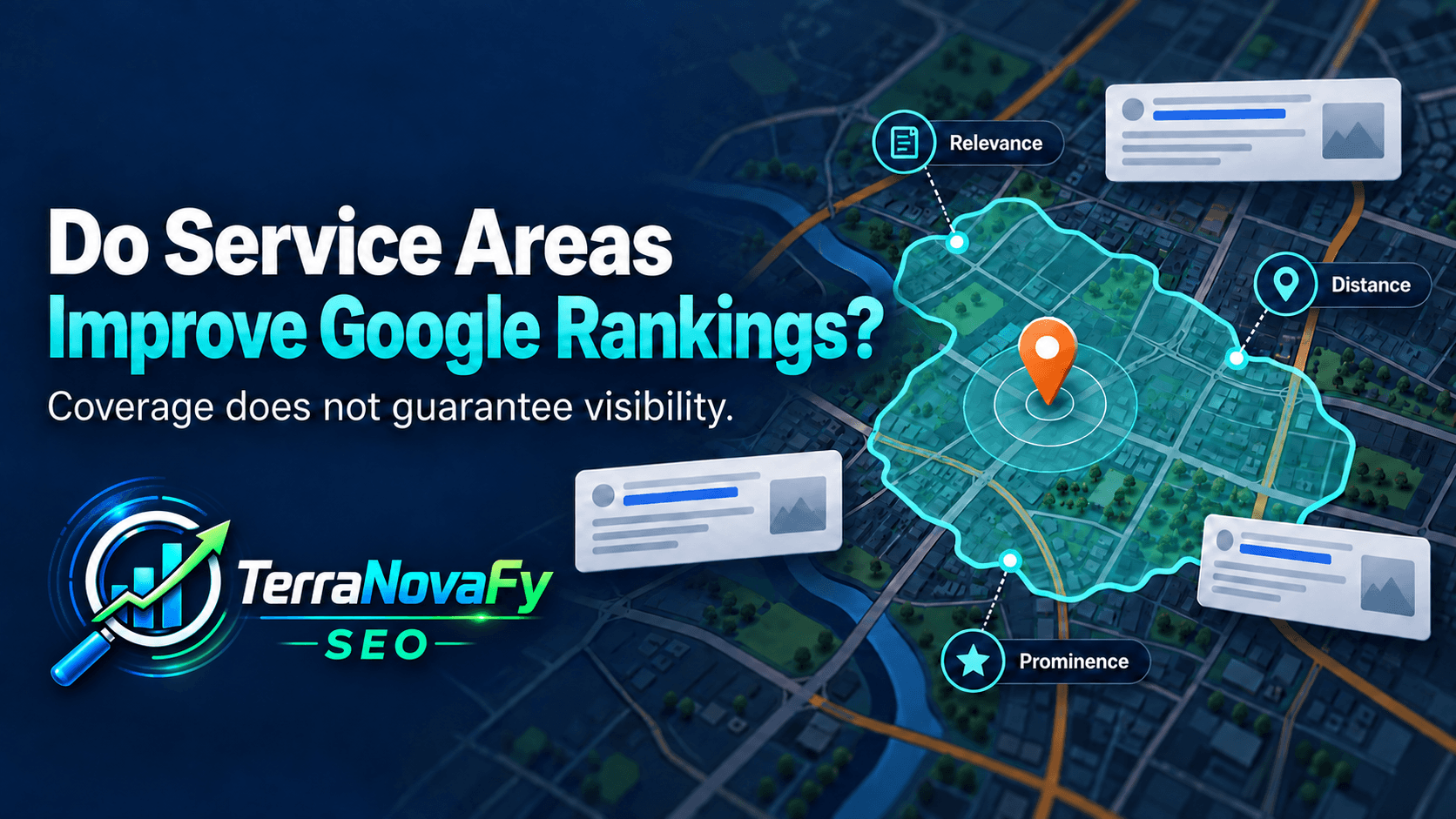
    Google Business Profile service areas tell customers where your company provides service. Adding a city does not guarantee that your business will rank there. Google’s local ranking system also considers relevance, distance, and prominence.

    For example an HVAC business, choose service areas that reflect where your team actually preforms AC repair. Treat them as customer information rather than a way to secure placement across a larger region.

    What Google Business Profile service areas do

    Service areas help customers understand whether you can visit their property. Google allows eligible businesses to identify coverage through cities, postal codes, or other supported areas.

    Google currently allows up to 20 service areas. Its guidance says the overall coverage boundary generally should stay within about two hours of driving time from your business base. Review Google’s service-area instructions when updating your profile.

    If you do not serve customers at your business address, remove that address from public display on your profile and use your service area. Your profile should describe how customers actually receive service.

    Adding cities to your Google Business Profile service areas does not guarantee visibility.

    Google explains that distance remains one of the main factors in local rankings. A service-area entry does not create another business location.

    For example, a hypothetical contractor based in Orlando Florida might also serve nearby communities. Listing those communities communicates coverage. It does not establish an office in each one or promise the same ranking across every search location.

    Google’s local ranking guidance also identifies relevance and prominence. Therefore, review your business information and reputation alongside the places you serve.

    How should you choose your coverage?

    Start with your actual scheduling limits. Consider drive time, appointment availability, and the services you can support in each area.

    If your team handles installations in a wider territory than urgent repairs, explain that distinction on your website. Customers need to know whether your coverage matches the work they need.

    Review the list when staffing or routes change. Accurate coverage helps your team spend less time responding to requests it cannot accept.

    What should you improve next?

    Check that your profile points to a useful website. Your service pages should explain what you offer, where you work, and how to request an appointment.

    Then review the inquiries you receive. Which locations produce suitable work? Where do you lose opportunities because of travel or availability? Use those answers to guide your coverage and website content.

    Visit TerraNovaFy to discuss how your business profile and website can support your local SEO goals.

  • Why Your Contractor Website Needs Ongoing Maintenance

    Why Your Contractor Website Needs Ongoing Maintenance

    Launching a new website feels like finishing a project. Your service pages look right, your phone number works, and customers can request estimates. However, contractor website maintenance starts after launch. Your software, hosting environment, email service, and business information continue to change.

    A site can still look normal while an important function fails. A contact form might display a success message without delivering the request. An update might disrupt the mobile menu while the desktop layout looks fine. These problems deserve attention before customers report them.

    Ongoing maintenance gives you a repeatable way to check your website, correct problems, and protect the work you invested in it.

    What can break on an unattended website?

    WordPress brings together core software, a theme, plugins, and hosting services. Each part has its own update cycle. A change in one component can affect another, especially when a developer stops supporting older code.

    A theme conflict might change spacing or hide a button. A plugin error might stop a quote calculator. A server software change might expose an incompatibility that prevents a page from loading.

    Leaving everything untouched does not freeze those dependencies. It also leaves you using older versions that may contain known defects. Instead, maintain an inventory of the software your site needs and assign someone to review updates.

    The practical question is simple: who will notice when a function stops working, and who will fix it?

    Contact forms can fail without a visible error

    Your website form handles more than the fields a visitor sees. It may depend on validation, spam filtering, an email service, and a connection to your customer management system.

    Consider a hypothetical roofing company. A homeowner submits a replacement estimate request and sees a confirmation message. The form stores the entry, but an expired email connection prevents the office from receiving it. The customer waits, then calls another company.

    A maintenance check should follow a test inquiry from submission to receipt. Check the stored entry, notification, attachments when relevant, and any connected system. Then confirm that someone can respond using the customer’s contact details.

    If your website reports fewer leads, compare form records and office records before assuming that search rankings caused the decline.

    Database clutter needs diagnosis

    WordPress stores content, settings, and other information in a database. Plugins can add logs, temporary records, and scheduled tasks. Over time, unnecessary data can complicate administration and backups.

    However, a high revision count does not prove that your public pages load slowly. Server resources, inefficient queries, oversized automatically loaded settings, and other factors may matter more.

    Investigate the cause before running a cleanup tool. For example, a plugin that records every request might create a growing table. Shortening its log retention could address that problem more directly than deleting all post revisions.

    Keep useful recovery history. Back up the database before making changes, and avoid deleting records merely because their names look unfamiliar. A documented cleanup should solve a measured issue.

    Security problems can affect small businesses

    An attacker does not need to know your company before testing its website. Automated requests can target common software weaknesses across many sites.

    Routine maintenance should address available security fixes, unnecessary accounts, unsupported extensions, and access controls. The WordPress security handbook explains the platform’s approach to reducing these risks.

    Security tools can help identify suspicious activity, but installing one does not finish the job. Someone still needs to review alerts and decide what action to take.

    For a contractor, the operational concern includes unwanted pages, changed contact details, and lost access to the website. Keep business ownership of your domain, hosting, and administrator accounts clear so a staff or vendor change does not prevent recovery.

    How contractor website maintenance supports SEO

    Maintenance supports the conditions that useful content needs: accessible pages, working navigation, and a reliable experience. It does not replace service information, local relevance, or a sound content strategy.

    Slow pages can make it harder for a homeowner to read your offer or contact you. Google also encourages good page experience, while making clear that strong scores alone do not guarantee high rankings. Its page experience guidance explains that distinction.

    Look at the service pages customers actually visit. A fast homepage will not solve a replacement page that loads a large video and several unused widgets.

    Check changes over time and investigate new delays. Avoid treating one test score as a complete diagnosis.

    Broken links deserve a practical response

    A broken navigation link can send a customer to an error page instead of the service they need. Start with links in menus, service pages, articles, and appointment buttons.

    When content moves, update internal links and send the old URL to the relevant replacement. When you permanently remove content without a suitable replacement, an honest not-found response can be appropriate.

    Do not redirect every missing page to the homepage. That can leave visitors wondering where the promised information went.

    For most small contractor websites, repairing customer paths and checking indexing deserve more attention than crawl-budget calculations. Google’s crawl-budget guidance primarily addresses large or frequently changing sites.

    What a useful maintenance routine includes

    Start with backups that cover both your files and database. Keep a recovery copy separate from the live hosting environment, and choose a backup frequency that reflects how much information you can afford to lose.

    Next, review software updates and compatibility. Use a staging copy for changes that could affect layouts, forms, or business integrations. Verify the live website after deployment because staging cannot reproduce every production condition.

    Monitor availability so someone receives an alert when the site becomes unreachable. Then add function checks, since a homepage can load while a form fails.

    At least monthly, submit test inquiries, tap phone links, review key pages on mobile, and check recent errors. Repeat the relevant tests immediately after changes that affect those features.

    Choose the backup schedule around the information your site stores. If you collect estimate requests in WordPress, a week-old copy may omit recent inquiries. If you only publish occasional articles and keep inquiries in a separate system, your recovery needs may differ. Write down the acceptable data-loss window and test whether the backup arrangement meets it. Revisit that decision when you add booking, payments, or another feature that stores business records.

    Require evidence that the work happened

    A maintenance report should help you understand the website’s condition. Ask for the update date, backup status, tested forms, unresolved problems, and next actions.

    For example, “contact form tested” leaves several questions. “Estimate form submitted on mobile, notification received by office, confirmation checked” tells you what someone verified.

    Use the same approach with performance. A report should identify which page changed, what caused the problem, and whether the fix improved the result. A collection of scores without decisions offers little help.

    To turn those tasks into a recurring schedule, read our guide to how often contractors should update their websites.

    Use symptoms to choose the next check

    A short symptom log helps your provider investigate without guessing. Record what you observed, when it started, and whether it happens on more than one device.

    What you noticeWhat to check firstWhat would confirm the repair
    Fewer email inquiriesForm entries, delivery logs, recipient inboxA labeled submission reaches the office
    A broken mobile layoutRecent template changes and device testingKey pages display and function correctly
    A new delay on one pageAdded media, scripts, and server responseRepeat tests show the delay has improved
    An unexpected error pageRequested URL, redirect rules, page statusThe address reaches the intended content
    An unfamiliar administratorAccount history and authorized access listThe owner verifies accounts and access controls

    These checks do not replace a diagnosis. They give the person investigating a specific starting point.

    For example, “the website feels slower” might lead to unnecessary changes across the site. “The repair page began loading slowly after we added a video on Tuesday” narrows the investigation.

    Keep screenshots and error messages when possible. Good records reduce the time your provider spends recreating a problem and make it easier to verify the result.

    Start by checking your current website

    Contractor website maintenance does not require a full redesign every time something fails. You need to identify the problem, decide its priority, and keep it from recurring where possible.

    Begin with your main service pages and the actions that generate inquiries. Confirm that customers can reach you, then review the systems that keep those pages available.

    Start with a Free SEO Audit from TerraNovaFy to discuss your website’s current condition and the next improvements worth considering.

  • How Often Should Contractors Update Their Website?

    How Often Should Contractors Update Their Website?

    Contractor website updates should follow the type of change your business needs. Review routine software work weekly, test important functions monthly and after relevant changes, and review service content and SEO priorities quarterly. Address urgent security fixes and incorrect business information as soon as they require action.

    This schedule provides a starting point, not a rule for every website. A basic service site and a website that processes bookings need different levels of monitoring.

    The goal is to keep your website accurate and usable without treating every minor issue as a reason to rebuild it.

    Separate four types of website updates

    Software updates change WordPress, themes, plugins, or the hosting environment. They may address security, compatibility, or functionality.

    Content updates change what customers read, including services, coverage, photos, and appointment information. These should follow real business changes.

    SEO reviews examine how people find and use your pages. They can identify missing information, weak internal links, or technical problems.

    Structural changes affect templates, navigation, page relationships, or the platform itself. They need more planning because one decision can affect many pages.

    Keeping these categories separate helps you assign the right person and avoid confusing a new paragraph with a software deployment.

    Handle urgent changes when they arise

    Do not wait for a monthly appointment when an important contact form stops working or your office number changes. Correct the problem and verify the result.

    Apply the same approach to a security issue that affects software you use. Review the developer’s information, assess the exposure, and arrange an appropriate fix. Your process should support urgent work instead of forcing every update into the same calendar slot.

    Temporary business changes can also require immediate edits. If your team stops taking a particular type of job, update the relevant page and inquiry form.

    Customers should not need to discover your current policies only after contacting your office.

    Review routine software updates weekly

    A weekly review helps you identify available releases, compatibility requirements, and unsupported components. Review what changed before deploying it.

    For larger changes, test a copy of the site first. Check layouts, navigation, forms, and important integrations. Then deploy during a suitable window and repeat the relevant checks on the live site.

    WordPress provides official update guidance, including preparation and recovery considerations.

    Automatic updates can fit some maintenance arrangements. Their usefulness depends on backups, monitoring, compatibility, and who responds to a failure. Agree on those responsibilities instead of assuming that automation completes the entire process.

    Keep a record of versions and deployment dates so you can connect a new problem with a recent change.

    Complete monthly function checks

    Test each active inquiry path, including quote forms, booking links, and phone buttons. Confirm delivery to the office or connected system.

    Next, inspect a few representative pages on mobile. Include the homepage, a main service page, a location page if you use them, and an article.

    Review backup results and monitoring alerts. A successful backup notification does not prove that recovery will work, so schedule restoration tests as part of the wider plan.

    Check performance for new issues and investigate database growth when it appears unusual. Avoid routine bulk deletion without understanding what the records do.

    For a provider-selection checklist, read what a monthly WordPress maintenance plan should include.

    Review content and SEO quarterly

    Compare your website with your current services. Look for outdated equipment references, old offers, inaccurate service areas, and pages that no longer match how your team works.

    Add project photos when they help explain the work and you have permission to publish them. Provide context instead of uploading an unlabeled gallery.

    Then review search queries and landing pages in Search Console. Identify questions that customers ask but your pages do not answer. Improve the page that best matches the topic rather than creating a new article for every keyword variation.

    Check internal links after changes. A useful article should lead readers to an appropriate next step, while your service pages should remain easy to reach from navigation.

    Do not rewrite pages just to change their dates

    A page does not become more useful simply because you replace a few words or display a newer date.

    Update it when you can correct an error, explain a process, add relevant evidence, or answer a question that readers still have. Google’s people-first content guidance emphasizes usefulness rather than superficial freshness.

    For example, a plumbing company might improve a service page after changing its scheduling process. An HVAC contractor might add details about what happens during a replacement consultation.

    Preserve information that still serves the reader. Avoid replacing a clear, successful page with generic copy merely to make the website feel new.

    When do contractor website updates require a redesign?

    A redesign becomes worth considering when recurring problems share a structural cause.

    Your templates might prevent clear mobile layouts. Your navigation might no longer fit your service categories. An unsupported builder might make basic changes difficult. A rebrand may require coordinated changes across the site.

    However, diagnose each issue first. A large image does not necessarily justify a rebuild. Neither does a single broken form.

    Compare two options: repairing the existing setup and replacing the affected structure. Ask what each option solves, what remains, and how much future maintenance it requires.

    The best choice should follow your needs and evidence, not the age of the website alone.

    Review shared elements when the business changes

    A new service area can affect more than one page. Your footer, service pages, profile links, form options, and scheduling messages may all describe where you work.

    Make a list of these repeated details before editing them. Then check that the final wording remains consistent across the site.

    For example, expanding routine maintenance into another city does not necessarily mean your team can provide urgent repairs there. State that difference where customers choose a service.

    Use shared templates or reusable content where they reduce duplicate editing. Still, verify the result on the pages customers see. A global edit can fix several pages at once or introduce the same mistake across all of them.

    Protect existing URLs and search visibility

    Keep working URLs when you can. Changing a heading or refreshing a photo usually does not require a new address.

    When a URL must change, document its relevant replacement and implement a permanent redirect. Update internal links and ensure the sitemap reflects the pages you want search engines to discover.

    Also verify indexing settings after major deployments. Development settings should not prevent your public service pages from entering search results.

    For a larger project, record key pages, search performance, and inquiry levels before launch. Those records help you investigate problems afterward.

    If your traffic has already declined following a rebuild, use our guide to diagnosing an SEO drop after a website redesign.

    Use a schedule your team can follow

    Assign each task to a named person or provider. Adjust the frequency when the website’s activity or dependencies justify it.

    TimingReviewExpected result
    When an urgent issue appearsSecurity exposure, failed inquiries, incorrect contact detailsA documented response and verified correction
    WeeklyAvailable software releases and compatibilityA decision to update, test, or investigate
    MonthlyForms, phone links, backups, errors, key mobile pagesA short report with results and open issues
    QuarterlyServices, coverage, project content, search queries, navigationPrioritized content and SEO improvements
    Before and after a major changeURLs, indexing, tracking, forms, recovery planA controlled launch with live verification

    Use the schedule to prevent omissions, but keep the workload proportional. A website with few changes may need a brief monthly review. A site with several integrations may need more frequent function checks.

    Review the schedule after a failure. If an expired email connection went unnoticed for weeks, decide whether a more frequent delivery test or a useful alert would have caught it sooner.

    The purpose is to improve detection and ownership, not to add recurring tasks without a reason.

    Assign ownership and define completion

    Choose who reviews updates, who approves content changes, and who responds when something fails. A task with several assumed owners often has no clear owner.

    Define what “complete” means. For a phone-number change, update the relevant pages and confirm that tap-to-call links use the correct number. For a form change, submit a test and confirm receipt.

    Keep a short monthly record of work completed, open issues, and planned improvements. This gives you continuity when staff or providers change.

    Talk with TerraNovaFy about your website goals and the update schedule that fits your services, customers, and growth plans.